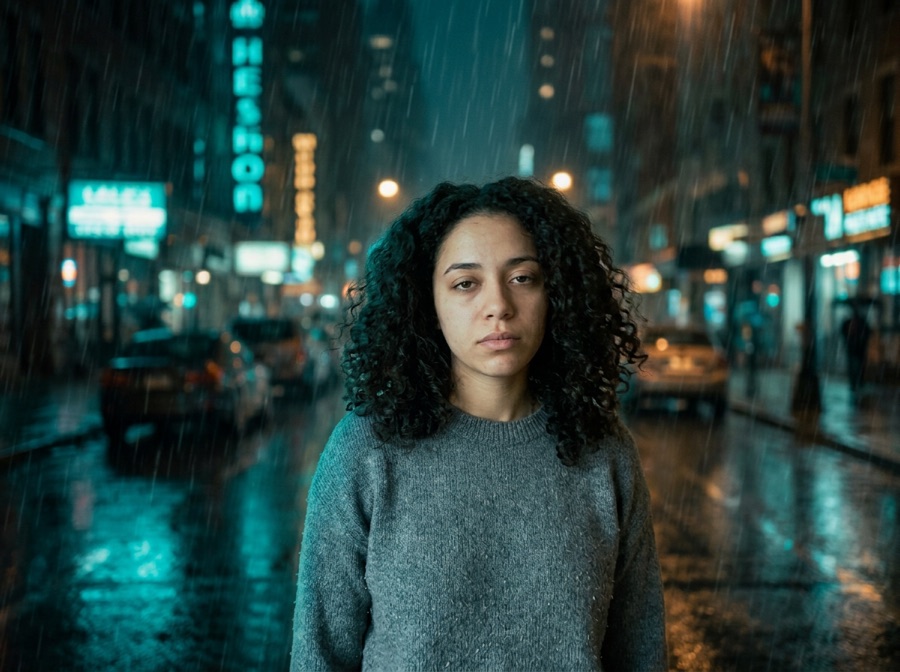
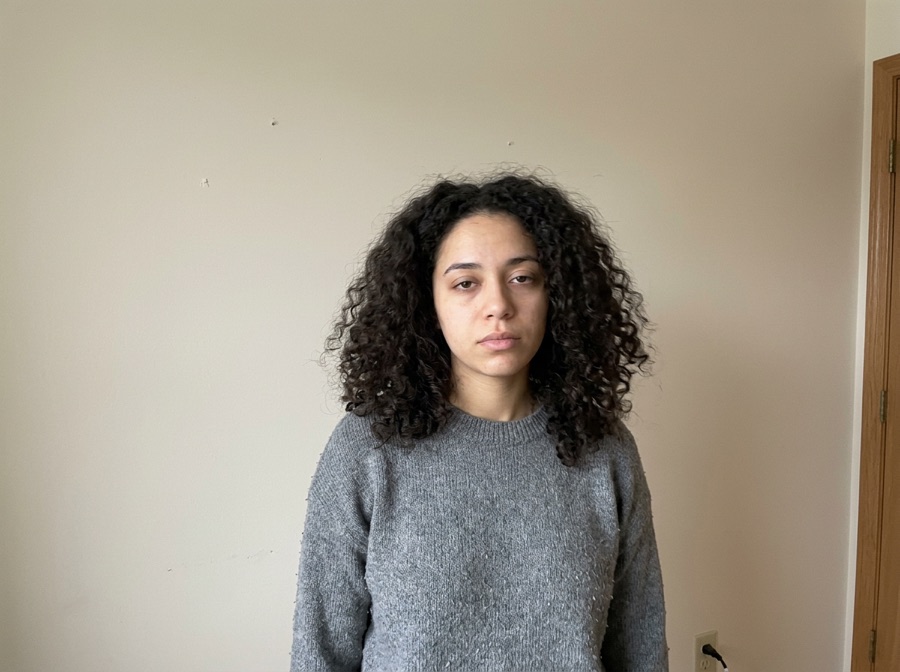
Profile and team photos
Move a casual portrait onto a clean office, studio or branded background while keeping the same expression and framing. Balanced strength is usually the safest starting point.
Upload a photo and describe the new scene — your face, body and pose stay locked while everything behind you changes. First image free.
No photo handy? Try a sample
Pick one direction. Keepframe will protect the important parts automatically.
✦ 1 free result as a guest · failed generations never count
The examples keep face, body and pose as the anchor while replacing only the environment and its lighting.
Most img2img tools give you one abstract “strength” slider. We turn it into decisions a human actually makes.
Locked items become model routing, region masks and post-composition — not just a sentence in the prompt.
One tap per intent. Each chip compiles into a structured instruction with the right negative constraints.
Light touch: tone, light, small edits. Routed to precise editing models.
The default. Obvious change with stable identity and layout.
Big reimagining. Structure loosens — fine details may drift, on purpose.
Drop any JPG, PNG or WebP. We recognize portraits, products, sketches and interiors, and pre-lock what usually matters for that kind of image.
Toggle what to keep, tap what to change, pick Subtle, Balanced or Creative. No denoising values, no seed numbers, no model menus.
Slide before/after, download free with no watermark, then keep editing the result with plain language — no re-upload needed.
Tap any template — it configures keep, change and strength, then scrolls you back to the studio.
This free AI background changer is designed for the common job other generators make risky: replace the scene but keep the person. Upload one portrait, lock Face and Composition, describe the new environment, and generate a result without signing up. It works for profile photos, travel scenes, social posts and campaign concepts where identity must survive the edit.
Move a casual portrait onto a clean office, studio or branded background while keeping the same expression and framing. Balanced strength is usually the safest starting point.
Place a subject at a beach, mountain, city night or seasonal scene without recreating the person from text. The uploaded photo remains the visual reference.
Test several environments around the same model or creator. Keep pose and wardrobe fixed, then compare which background gives the clearest message before producing the final asset.
Use one visible subject with good separation from the current background. Avoid group photos, heavy motion blur and objects crossing the face.
Enable Face, Subject and Composition locks, then choose Background as the only change. Subtle keeps original lighting; Balanced adapts it to the new scene.
Specify the environment, time of day and mood. Review hair edges, hands and shadows before downloading, and retry at a lower strength if identity shifts.
Copy one as a starting point, then change only the details that matter to your image.
Use these checks before increasing change strength or adding more instructions.
Do the same for video: keep the motion of a short clip and change the scene.
Change outfit, backdrop and light for a professional portrait.
Change the visual style while preserving face and pose.
Create controlled alternatives from the edited image.
Your images and results are never public. No gallery, no indexable links.
Anonymous uploads and results are wiped within 24 hours, automatically.
We don't use your uploads to train models. Not opt-out — it just doesn't happen.
One click removes the source and every result. Download links die with it.
5 credits per successful standard image. Two more takes cost up to 10 credits. Failed images are refunded.
Compare all credit plans and usage costs
Loading prices…
Subscriptions renew monthly and add credits after each successful payment. Packs are one-time purchases, available with or without a subscription. Unused credits carry over and remain after cancellation. No automatic pack purchases.
No “100% accurate” promises. Here's the truth, and the workaround.
Yes. Face, Subject and Composition locks use the uploaded portrait as the identity and pose reference while Background is changed.
Your first result is free with no sign up and no watermark. Failed generations do not count against it.
Use a sharp photo with one person, visible shoulders or body, and clear separation from the existing background.
Yes. Do not select Outfit as a change, keep Subject locked, and state that clothing must remain unchanged in the instruction.
Uploads are processed for generation and are not used for model training. A share copy is stored only if you explicitly create a temporary share link.
Each tool pre-configures the right locks and presets for the task.
Line art to realistic or stylized renders. Outline & composition locked.
New scene behind an untouched you. Face, body & pose locked.
Studio shots and ad variants. Product, logo & packaging locked.
Anime and manga styles with your face and pose intact.
Restyle a room without moving a wall. Layout, doors & windows locked.
Four takes on the same idea. Subject & composition preserved.
Casual selfie to LinkedIn-ready headshot. Your face, locked.
Stage empty listings in seconds. Walls & windows never move.
Copy controlled prompts for lighting, palette, season, background and style.
Recreate practical before-and-after directions without losing the source.
Ecommerce and campaign photo workflows built from one real product.
Replace only the set while product, logo and packaging stay consistent.